In a modern BIM environment, Revit is not just a modeling tool — it is a platform for managing project data. However, many engineers and BIM modelers still use Revit in a manual way, leading to wasted time and a higher risk of errors.
This article will help you discover 10 essential Revit tips to boost productivity, reduce errors, and significantly optimize your BIM workflow.

One of the most common mistakes when starting a Revit project is jumping in without a standardized template. This often leads to each team member setting things up differently, resulting in wasted time, inconsistency, and difficulty in managing the project later on.
A good template should be standardized from the beginning and include essential components such as:
Standardizing from the start not only helps you save hours of repetitive setup work, but also ensures consistency, easier management, and more efficient collaboration across teams throughout the project lifecycle.
Revit provides a powerful system of keyboard shortcuts that allows you to work much faster and more smoothly compared to relying on the mouse. Instead of searching for commands in the toolbar, you can trigger them instantly with just a few keystrokes.
Some commonly used shortcuts include:
By mastering these shortcuts, you can speed up your workflow by 2–3 times, reduce repetitive actions, and work more efficiently—especially in large projects with heavy workloads.
In construction projects, many elements are repetitive, such as columns, beams, doors, walls, or rebar. Modeling each element manually not only consumes a lot of time but also increases the risk of errors and inconsistencies across different areas.
Instead, leverage tools like Copy or Array in Revit to quickly duplicate existing objects. This significantly reduces modeling time and ensures that elements are copied accurately and consistently.
Parametric families in Revit allow you to create objects that can adapt flexibly based on parameters, instead of rebuilding them from scratch for each scenario.
With parametric families, you can:
A well-designed family can be used in multiple situations, greatly reducing the overall modeling workload.
View Templates in Revit are tools that help you control the display of your model consistently and professionally. Instead of adjusting each view individually, you can set up standards in advance and quickly apply them to multiple views.
With View Templates, you can control elements such as:
Applying these settings across the project saves time, reduces errors, and ensures consistency and professionalism in your documentation.
In a team environment within Revit, organizing data and dividing work efficiently is crucial for maintaining performance. Instead of working on a single “heavy” file that’s hard to control, use Worksets to assign specific areas of work to team members or disciplines.
In a collaborative workflow:
This approach reduces file size, minimizes data conflicts, and improves team performance—especially valuable in large projects involving multiple parties.
Constraints in Revit are tools that help you manage relationships between model elements in a precise and logical way.
You can use Constraints to:
This ensures your model follows the original design logic, reduces errors during modifications, and allows you to work faster and more accurately in constantly changing situations.
Dynamo is a powerful tool within Revit that enables workflow automation through visual programming.
With Dynamo, you can:
Thanks to the power of automation, tasks that once took hours can now be completed in minutes, significantly boosting productivity and minimizing errors.
Schedules in Revit allow you to extract data directly from the model quickly and accurately.
With Schedules, you can:
All data is automatically updated according to the model, reducing reliance on manual Excel sheets, minimizing errors, and increasing the reliability of project data.
Plugins in Revit are extensions that help you enhance productivity quickly without overhauling your workflow.
Plugins can help:
This is the fastest way to upgrade your Revit workflow. When combined with BIM processes and CDE platforms, plugins help you work faster, more accurately, and more efficiently.
Learn more: VinaCDE – A Comprehensive Construction Project Management Platform
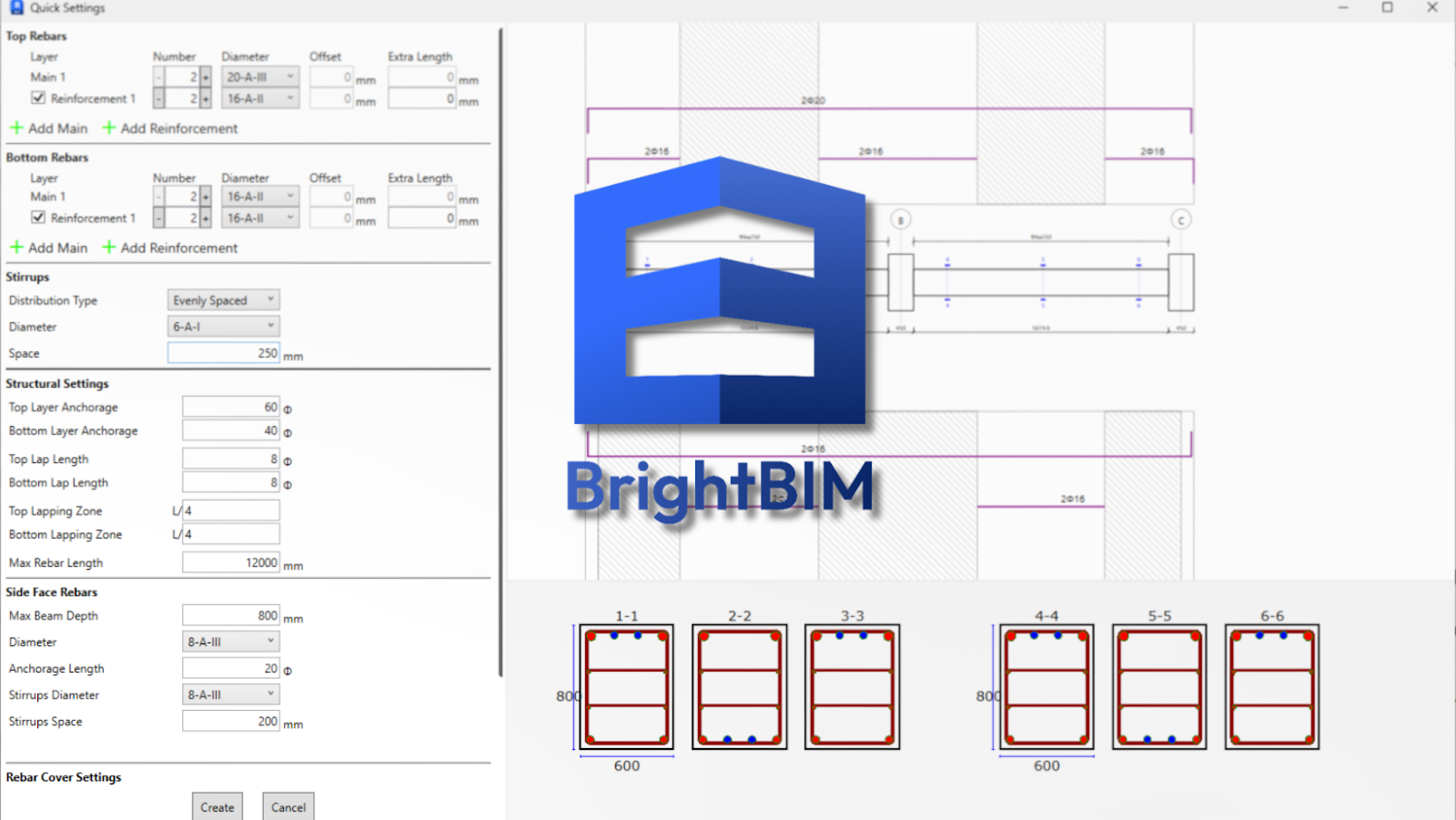
BrightBIM is a Revit plugin developed by a team of experienced construction and BIM specialists at BIMCAD Vietnam. It is designed to assist with rebar placement in reinforced concrete elements.
Advantages:
How It Works:
Learn more: BrightBIM Software
Revit is not just a tool for modeling—it is a platform that enables comprehensive BIM data management. However, real efficiency comes not from the software itself, but from how you set up and operate workflows within your project.
By applying the tips above, you can significantly speed up your work, reduce errors, and gradually standardize BIM processes within your team. More importantly, you will move from simply “modeling” to “intelligently managing data”—the key factor that unlocks the full value of BIM in modern projects.
Are you facing challenges in implementing BIM, Revit, CDE, or any technology and technical aspects related to BIM for your project?
Don’t worry — BIMCAD Vietnam is always ready to support you!